


Control Center:Theme,wallpaper
4.82.05K Reviews
App Specs
- Version
- 1.2.9
- Updated On
- License
- Free
- Downloads
- 10,000,000+
- Developer
- AceTools Team
- Categories
- Personalization
- Platform
- Android
Screenshots

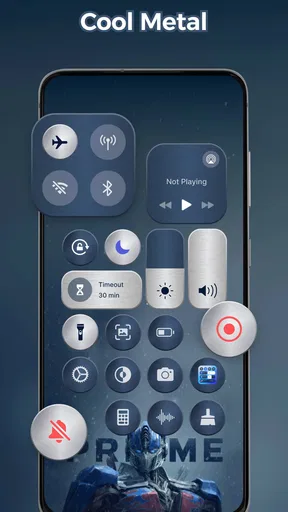
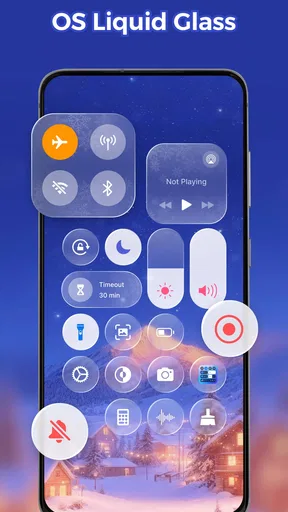

 Analysis by AppCompare
When I decide whether to add a control-panel app to an Android phone, I first ask what I actually want to reach faster. If it is mostly Wi-Fi, Bluetooth, brightness, a flashlight, and music playback, a swipe-out panel can be more convenient than opening separate settings screens. If I only want a different look, though, the built-in quick settings may already do enough. That distinction matters: Control Center - Stable & Easy is most useful when its shortcut layer solves a small, repeated annoyance, not simply because another phone’s interface looks appealing.
Start with the actions you repeat
I’d make a short mental list before installing it: which controls do I reach for every day, and how many taps do they currently take? Someone who adjusts brightness while reading, switches wireless connections while commuting, or pauses music while cooking has a clearer reason to try this app than someone who rarely changes phone settings. A control panel earns its place when it reduces friction in routines you already have.
There is also a practical question about where an extra swipe fits into your habits. If you often use gestures near the bottom edge, the panel’s swipe-up access may take a little getting used to; if your phone’s navigation already makes that gesture familiar, it may feel natural. I’d test the motion in the places I normally use the phone, rather than judging it from the setup screen alone.
For context, this is a free personalization app from AceTools Team, with optional in-app purchases priced from $9.99 to $29.99 per item. It is rated for Everyone and requires Android 6.0 or later. The app has a 4.7 average from around 194,000 ratings and more than 10 million installs, so it has clearly found a sizable audience, though popularity alone cannot tell you whether its panel suits your particular phone or habits.
Setting Up and First Impressions
The installation process is as smooth as butter. Once you download and open the app, you're greeted with a simple and intuitive interface that guides you through the initial setup. It’s perfect for those who might not be too tech-savvy. Seriously, if you can tap a button, you can set this up.
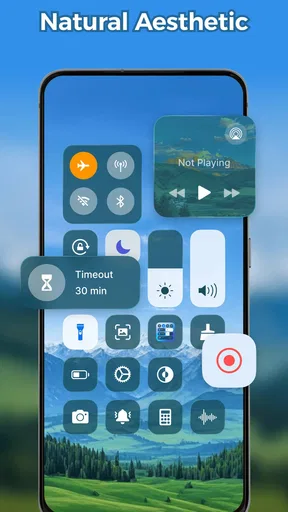
Once installed, a quick swipe from the bottom of your screen, and bam! There it is, your very own control panel. The design is simple yet effective, reminiscent of the iOS control center but with its own unique Android twist. If you love customizing your phone, this will feel like a playground for you.
Features That Stand Out
What’s cool about Control Center - Stable & Easy? Well, besides giving your Android a fresh look, it offers a plethora of handy features. You get quick access to settings like Wi-Fi, Bluetooth, and screen brightness. There’s also a flashlight toggle, which I find super convenient for those middle-of-the-night snack raids.
Worth Reading Before You Choose

EA SPORTS FC Mobile 26 Is a Bigger Football Game, but It Takes Time

Flipboard Shows What News Apps Must Do Beyond the Feed

Switching to Android Auto Means Rethinking Your Driving Routine

Google Calendar Makes a Crowded Week Easier to Manage

Ludo King Makes the Most of the Minutes Between Plans

Baby Panda World Brings Quick Play to Modern Phones, but Its Game Library Feels Busy
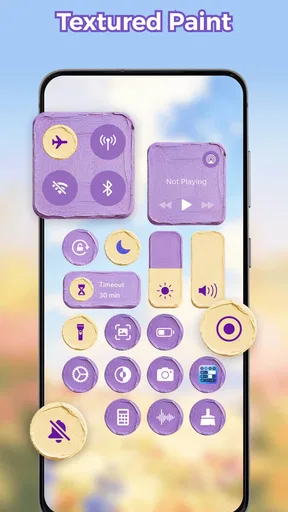
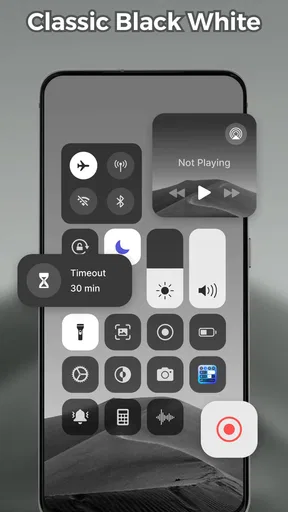
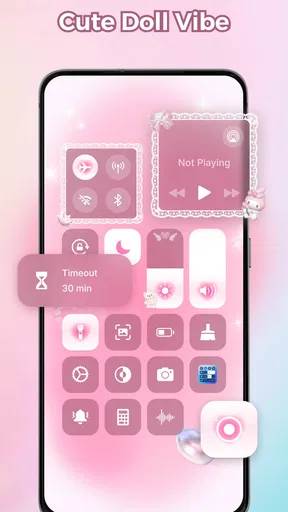
One feature I absolutely love is the music control section. You can manage your tracks without having to unlock your phone or fumble through apps. It’s all right there, making your life just a tad easier. Plus, if you’re into aesthetics, you can customize the look and feel of your control center. Change colors, tweak the layout, and make it your own.
Making the panel useful in ordinary routines
The strongest case for this kind of panel is a sequence of small actions, not a dramatic transformation. Imagine getting home with music playing through headphones: I can bring up the panel, pause playback, adjust brightness for a dim room, and then put the phone away without hunting through the home screen. On a walk, a quick brightness change or flashlight access can likewise be more useful than a decorative theme. These are modest time-savers, but repeated convenience is the point.
A useful way to set it up is to favor the controls you touch most and keep the panel visually easy to scan. If every available space is filled, a shortcut surface can become another crowded screen rather than a shortcut. I’d make one change at a time, use the panel for a day, and then adjust its appearance or layout only if something is hard to find. That helps separate practical customization from tinkering for its own sake.
Music controls are especially helpful when listening is already part of another task, such as cooking or exercising at home. They can reduce the need to switch apps just to pause or change a track. Still, I would not treat the panel as a replacement for a full music app: browsing a library, choosing a playlist, or changing detailed playback options may still mean opening the player itself. The panel is best for quick management, not for every part of listening.
Performance and Usability
If you’re worried about performance, don’t be. The app runs incredibly smoothly, and I didn’t notice any lag on my device. It integrates seamlessly with your phone, responding instantly to swipes and taps. It’s stable, living up to its name, and doesn’t hog your phone’s resources.
Usability-wise, it’s fantastic. It’s like adding a whole new layer of functionality to your phone without any of the hassle. The app is lightweight, and the user experience is top-notch. You won’t be left scratching your head trying to figure out how things work.
How it compares with built-in controls
Android’s built-in quick settings are the natural alternative, and for many people they are enough. They avoid learning a separate gesture and already belong to the phone’s system interface. If your main goal is reliable access to a few toggles and you are happy with the default arrangement, I would start there rather than adding another layer.
This app makes more sense when you specifically want a control-panel presentation and prefer reaching it from the bottom of the screen. That is a preference as much as a feature: people who like a consistent visual style across their phone may enjoy the change, while people who value the standard Android layout may find it unnecessary. Compared with broad launcher or theme customization, a control panel is also a narrower choice. It changes one frequent interaction rather than the whole home screen.
There is a trade-off in adding any overlay-style shortcut surface: it introduces another gesture to remember and another interface to maintain alongside Android’s own controls. If you sometimes open the wrong panel out of habit, or if the bottom-edge motion conflicts with how you navigate, the convenience can disappear. I’d give the gesture a fair trial, but I would not keep the app solely for its appearance if I rarely use the shortcuts.
Small checks that make the switch easier
Before making this your default way to reach controls, try it in both one-handed and two-handed use. A gesture that feels easy while sitting at a desk may be less comfortable while carrying a bag or holding something else. I also recommend checking that the panel’s placement feels distinct from gestures you already use; a little overlap can turn a fast shortcut into a repeated mis-tap.
Think about who else uses your phone, too. A simple panel may be easy for a family member to understand, but a customized arrangement can be confusing if someone borrows the device and expects the usual system controls. Keeping the layout straightforward is a sensible choice on a shared phone. The visual options are appealing, but accessibility and familiarity matter more than a color scheme if other people rely on your device.
If the panel does not appear to respond as expected, I would first repeat the gesture slowly and make sure I am using the access method established during setup. Then I’d compare the result with the phone’s normal quick settings to tell whether the issue is the app’s panel or the underlying setting. This basic check avoids wasting time changing several preferences at once and makes it easier to decide whether the extra interface is actually helping.
Who should skip it
I would skip this app if the built-in controls already feel quick, if I dislike adding gesture-based interfaces, or if I want deep customization across every part of Android rather than a dedicated control panel. It is also a poor fit for someone who expects a control panel to replace opening settings for every task. Quick toggles are convenient, but they do not remove the need for the full settings app when you want to change something more involved.
People who rarely adjust wireless connections, brightness, or playback may find that the panel becomes visual clutter. In that case, leaving the phone’s default controls alone is a reasonable choice, not a missed opportunity. I’d also be cautious about installing it just to imitate another operating system: if the gesture and shortcuts do not match a real need, the novelty may wear off quickly.
Version, value, and expectations
The current version is 1.2.7, and the app is free to install, with in-app purchases ranging from $9.99 to $29.99 per item. I’d begin with the free experience and decide whether the panel’s daily convenience is real before considering any purchase. The paid options make it worth checking what is included in the app before spending, especially if your interest is mainly the basic idea of quicker access.
For Android users who like to adjust the feel of their phone, the personalization angle is part of the appeal. For someone who cares only about functionality, the more important question is whether the controls they use are genuinely easier to reach. A visually pleasing panel can be a nice extra, but I would judge value by whether it saves effort over several ordinary days, not by how fresh it looks immediately after setup.
Final Thoughts
So, is Control Center - Stable & Easy worth downloading? Absolutely. If you’re an Android user who envies the iOS control center or just wants more functionality at your fingertips, this app is a no-brainer. It’s user-friendly, customizable, and just plain fun to use.
In a world where we want everything faster and more accessible, this app nails it. You get a practical tool that enhances your device's usability without any complicated setups or costs. I’d say give it a try; it might just become your new favorite app.
Ready to take control of your Android? You can find the download link below and start exploring all the features yourself. Trust me, you won’t regret it!
Pros
- Intuitive user interface design.
- Highly customizable settings.
- Quick access to essential tools.
- Smooth performance with minimal lag.
- Supports both Android and iOS platforms.
Cons
- In-app ads can be intrusive.
- Limited features in free version.
- May drain battery quickly.
- Not all features are available on older devices.
- Occasional crashes reported by users.
FAQs for Control Center:Theme,wallpaper
What is Control Center - Stable & Easy, and how does it work?
Control Center - Stable & Easy is an app designed to streamline your device's settings and features for quick access. It works by providing a customizable interface that allows you to access frequently used settings like Wi-Fi, Bluetooth, and screen brightness with a single swipe. This app aims to enhance user convenience and productivity.
Is Control Center - Stable & Easy compatible with all Android and iOS devices?
While Control Center - Stable & Easy is designed for broad compatibility, it may not support all versions of Android or iOS. It’s important to check the app’s specifications on the download page to ensure it is compatible with your device's operating system version. Regular updates may expand compatibility over time.
Does Control Center - Stable & Easy offer customization options?
Yes, Control Center - Stable & Easy offers a variety of customization options. Users can personalize the interface by choosing which shortcuts and settings are most important to them. This flexibility allows users to tailor the app to better fit their individual needs and preferences, enhancing the overall user experience.
Are there any in-app purchases or ads in Control Center - Stable & Easy?
Control Center - Stable & Easy is typically free to download, but it may include in-app purchases or ads. These purchases can unlock additional features or remove advertisements to enhance the user experience. Checking the app’s details on the store page will provide more information on available purchases and their benefits.
How secure is Control Center - Stable & Easy regarding user data?
Control Center - Stable & Easy prioritizes user privacy and data security. The app is designed to function without requiring extensive personal data access. However, it is advisable to review the app's privacy policy and permissions requested during installation to ensure it aligns with your privacy preferences and security standards.


